Blog
How to Run Cricfy TV on PC via BlueStacks (2026)
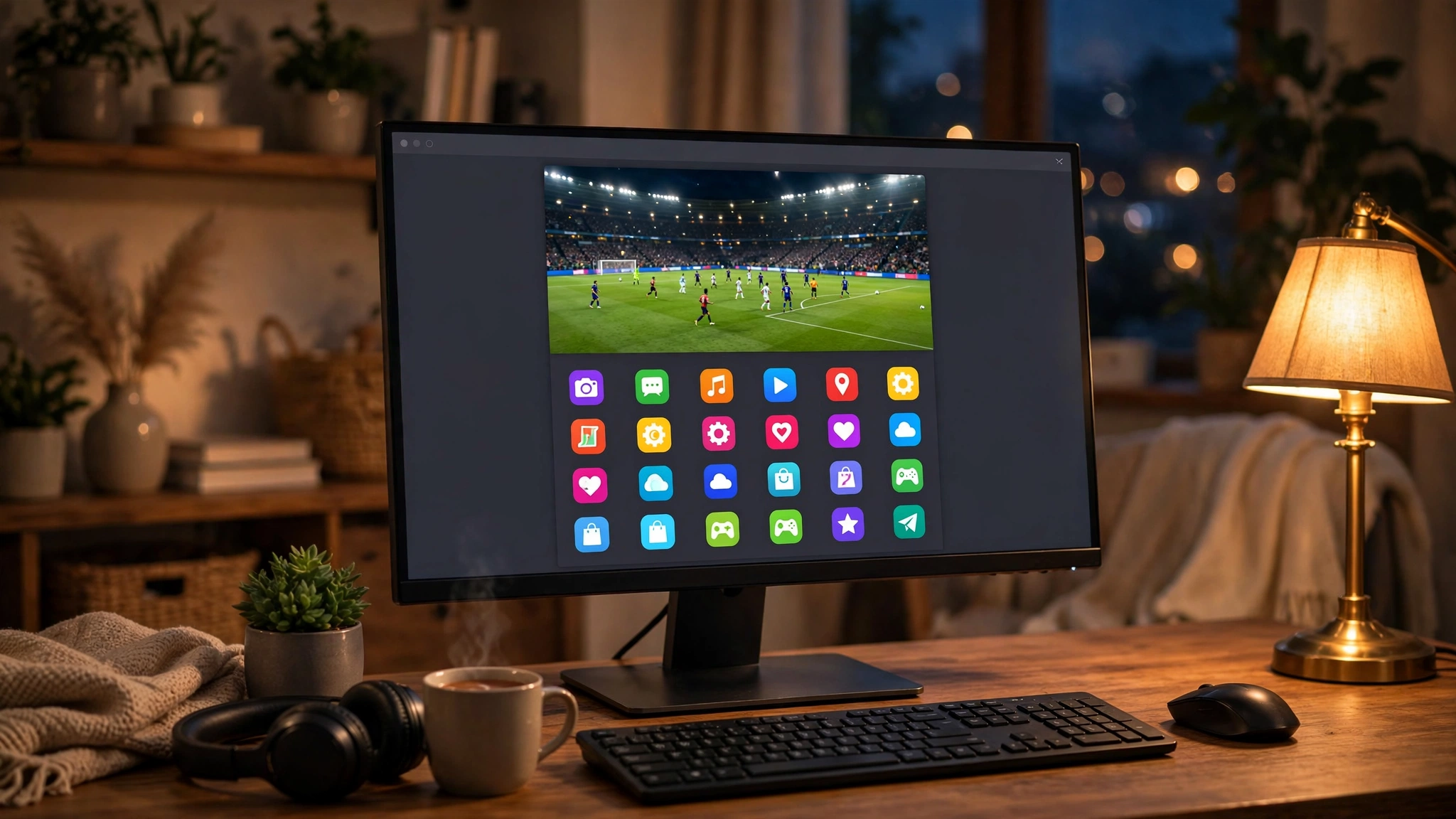
There is no native Cricfy TV app for Windows — but BlueStacks, the popular Android emulator, runs it beautifully on any decent PC or laptop.
What you need
- A Windows 10/11 PC with at least 8GB RAM (4GB works but lags)
- BlueStacks 5 (free) from the official site
- The Cricfy TV APK
Setup steps
- Install BlueStacks 5 and complete its initial setup.
- Drag the Cricfy TV APK onto the BlueStacks window — it installs automatically.
- Open Cricfy TV from the BlueStacks home screen.
- Sign in with a Google account inside BlueStacks if any prompt asks (the app itself needs no account).
Best BlueStacks settings for streaming
- Settings → Performance: assign 4 CPU cores and 4GB RAM if your PC allows.
- Display: set to 1920×1080 for crisp full-screen matches.
- Enable virtualization (VT) in your BIOS — this is the single biggest performance boost.
- Use fullscreen (F11) during matches for a TV-like experience.
Alternatives to BlueStacks
LDPlayer and NoxPlayer also work and are lighter on low-end PCs. The steps are identical: install emulator → drag APK → open app.
For the full PC guide, see our Cricfy TV for Windows page.
Get Cricfy TV v7.2
Download now
Free download · No login required · Updated September 30, 2026