
Blog
Running Cricfy TV on Chromebook (2026 Guide)
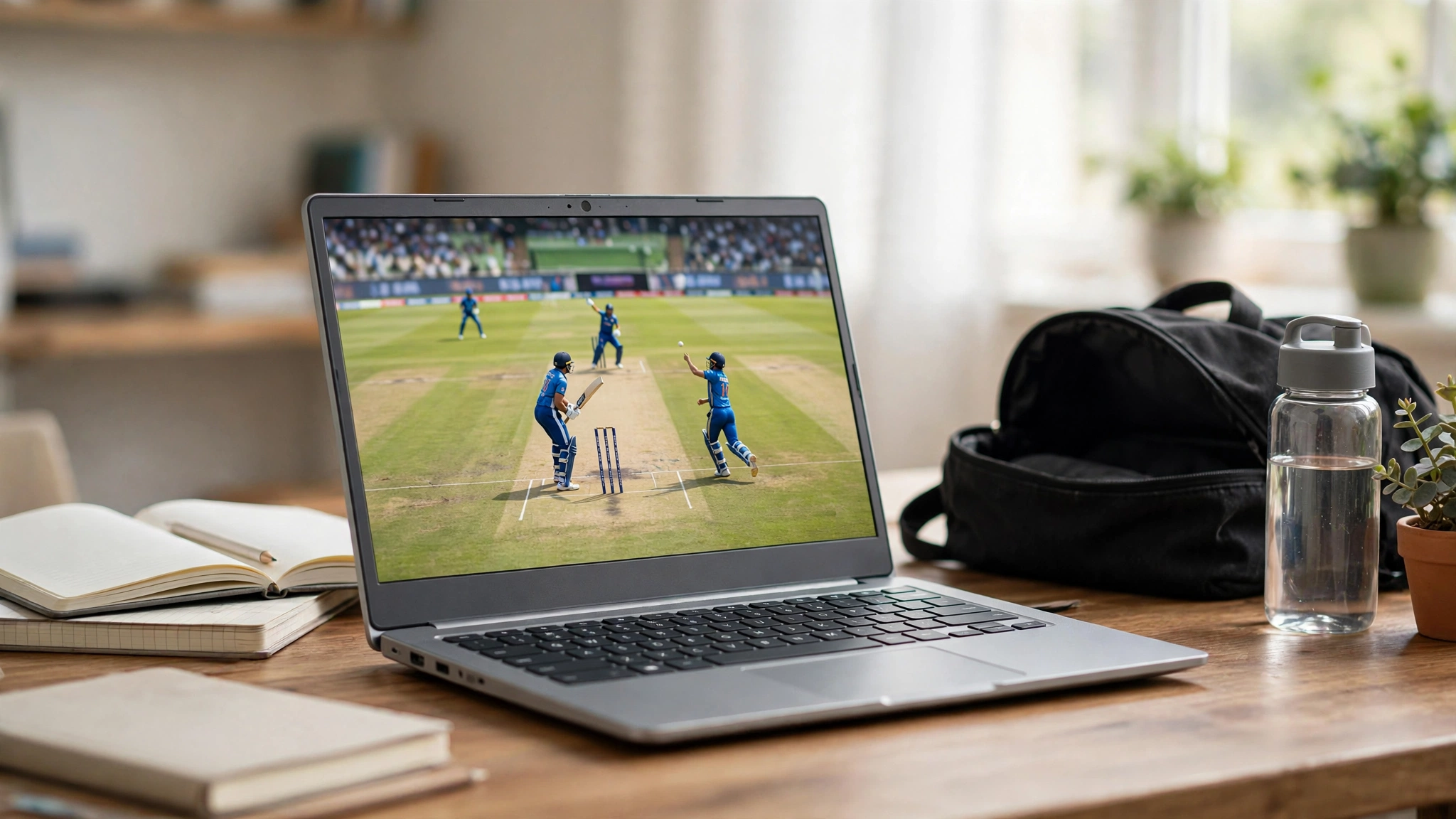
Most modern Chromebooks run Android apps natively — which means Cricfy TV works on your Chromebook without any emulator.
Method 1: Direct APK install (works on all Chromebooks)
- Download the Cricfy TV APK on your Chromebook.
- Open the Files app, find the APK, and double-click it.
- If prompted, enable "Install unknown apps" for the Files app in ChromeOS settings.
- Install and open — the app runs in a phone-sized window you can resize.
Method 2: Linux container (advanced)
If your Chromebook has Linux (Crostini) enabled, you can install Android tools there — but Method 1 is simpler for 99% of users.
Chromebook-specific tips
- Resize the window — drag the corners to make the player bigger; fullscreen (F4 or the fullscreen key) works for matches.
- Use keyboard shortcuts: spacebar pauses, arrow keys seek — handy during long innings.
- Connect to Wi-Fi, not mobile hotspot, for stable HD streams.
- On ARM Chromebooks (MediaTek/Snapdragon), the app runs natively and smoothly. On Intel Chromebooks it runs through translation — still fine for streaming.
- Plug in external speakers or headphones — Chromebook speakers are usually weak for commentary.
Want it on a bigger screen instead? See Cricfy TV on Android TV box.
Get Cricfy TV v7.2
Download now
Free download · No login required · Updated September 30, 2026


